A flow can run itself, either on a schedule or whenever something happens in a connected app.

Schedules

Save the flow and set its status to Active in Settings, then click Schedule Flow in the toolbar. Pick how often it should run, along with the time and your timezone. Schedule at shows what you picked in plain language.
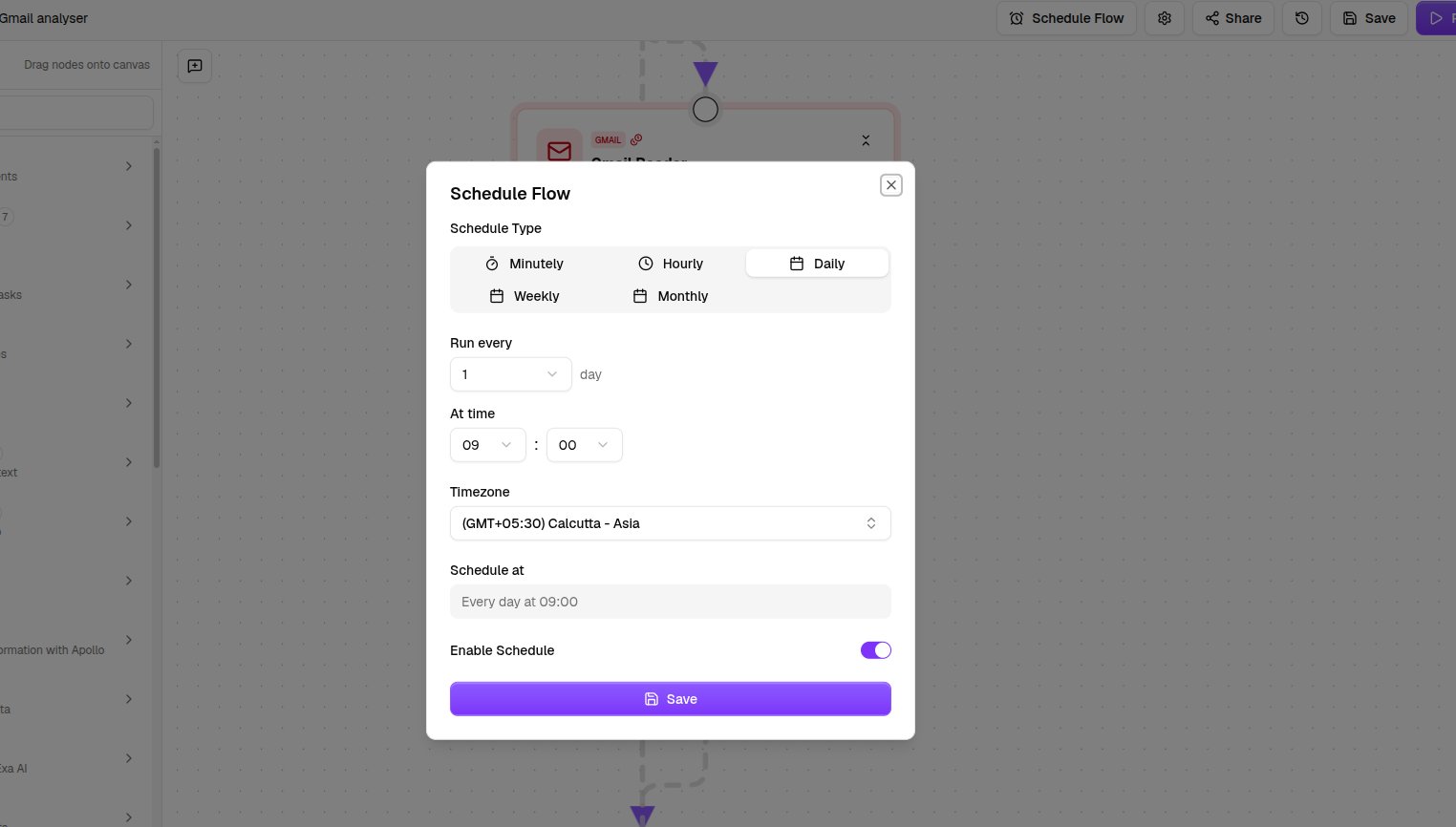
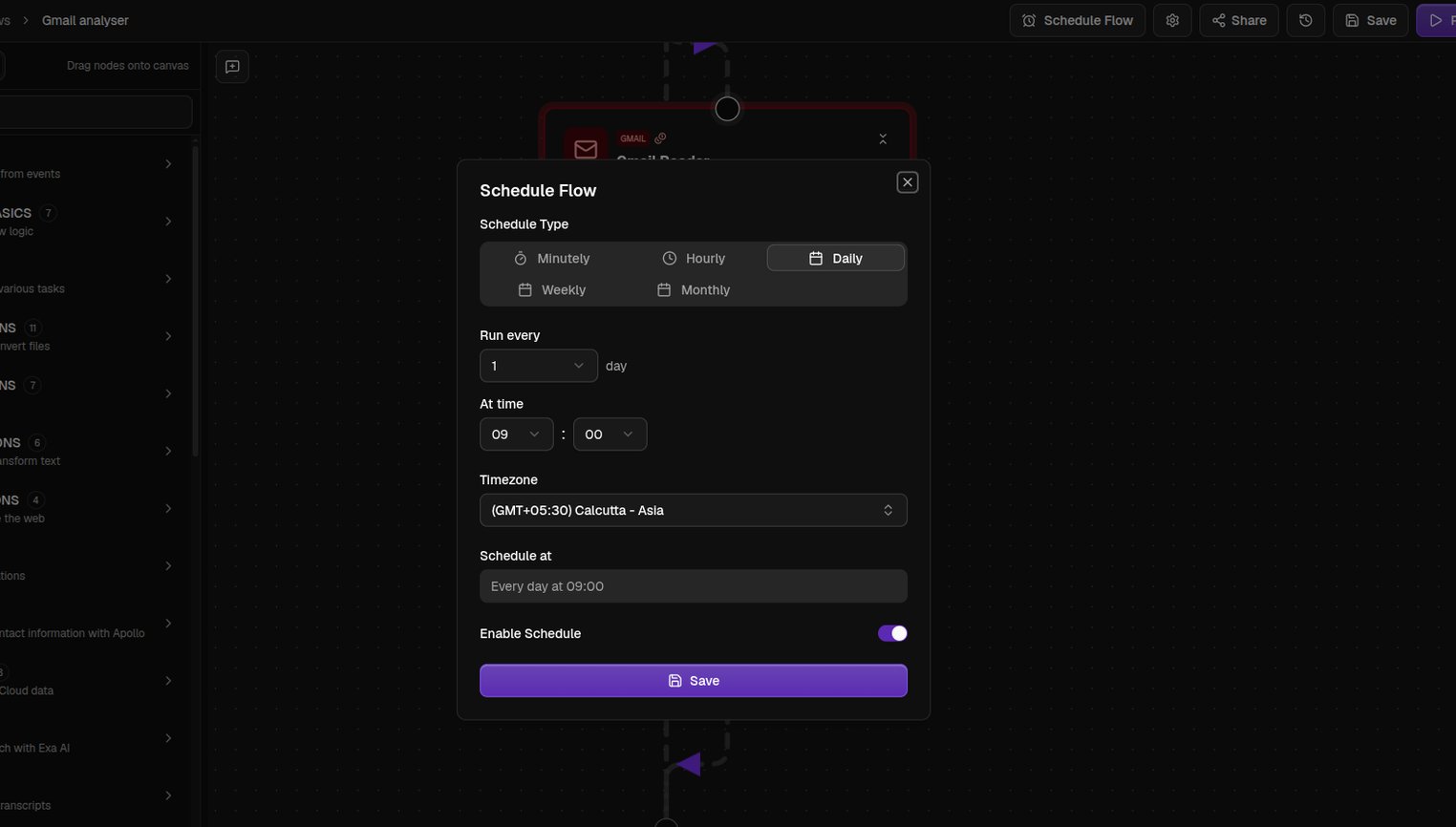
The Schedule Flow window with cadence, time, and timezone options
Enable Schedule turns it on. The toolbar button then reads Scheduled, and reopening it lets you edit or delete the schedule. Switching a flow back to Draft stops its scheduled runs.

Triggers

A trigger runs your flow when something happens in an app, like an email arriving or a row being added to a spreadsheet. Drag one in from the Triggers category, give it a credential, and tell it what to watch. A flow can have one trigger, and it must be the first node. See Triggers for what each one listens for.
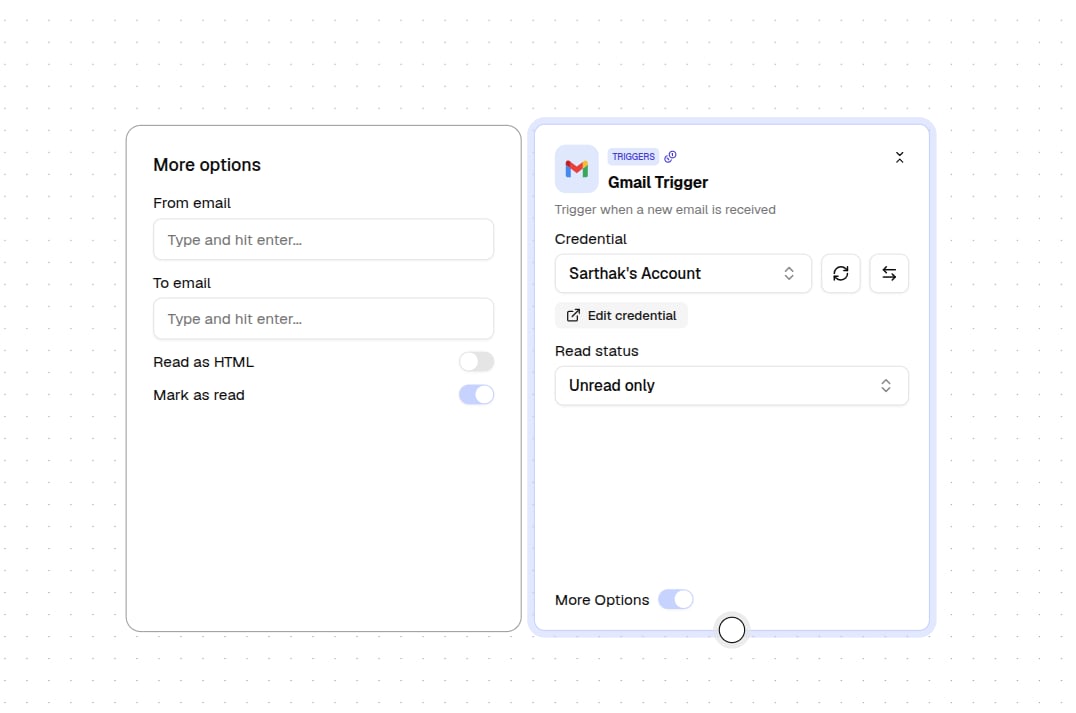
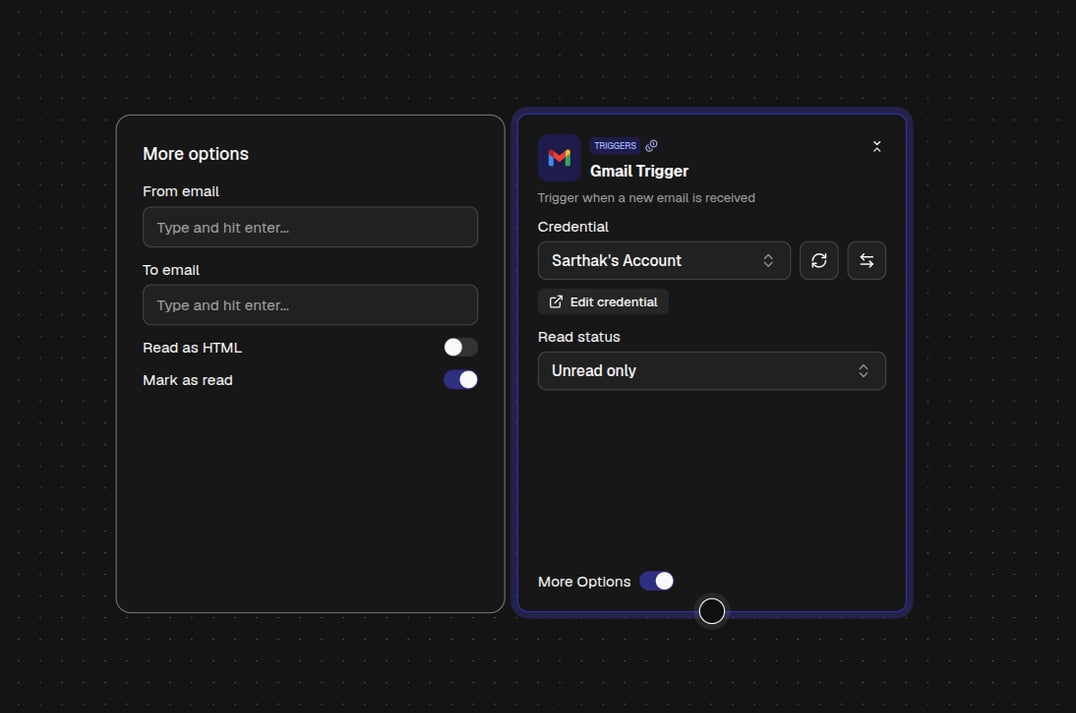
A trigger node on the canvas with its credential and filter settings
To go further, the Custom Code Trigger can listen to events from any of the 1,000+ apps in the catalog. Pick the service, the event, and your account, then ask the builder in Chat mode to write the code that pulls out the values you need. Triggers only listen while the flow is Active, so set the status in Settings and save. The trigger’s icon then appears in the Triggers column of your Flows list, which confirms it is live. A new trigger starts watching from that moment, so it will not pick up anything that happened before.