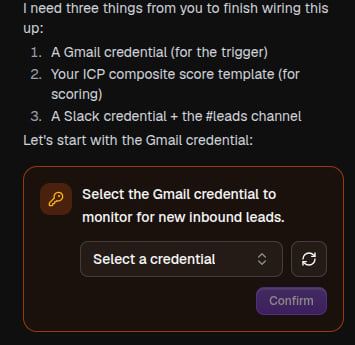
The flow builder’s Chat mode turns a plain-language description into a working flow: describe what you want, and the AI builder drafts and wires up the nodes for you.

Build a flow

Open a new flow. It starts in Chat mode. Type your request in the message box, being specific about your data source, what should happen to it, any apps involved, and what you want out:
Whenever I get an email from a new lead, research the company on the web and post a short summary to our #leads Slack channel.
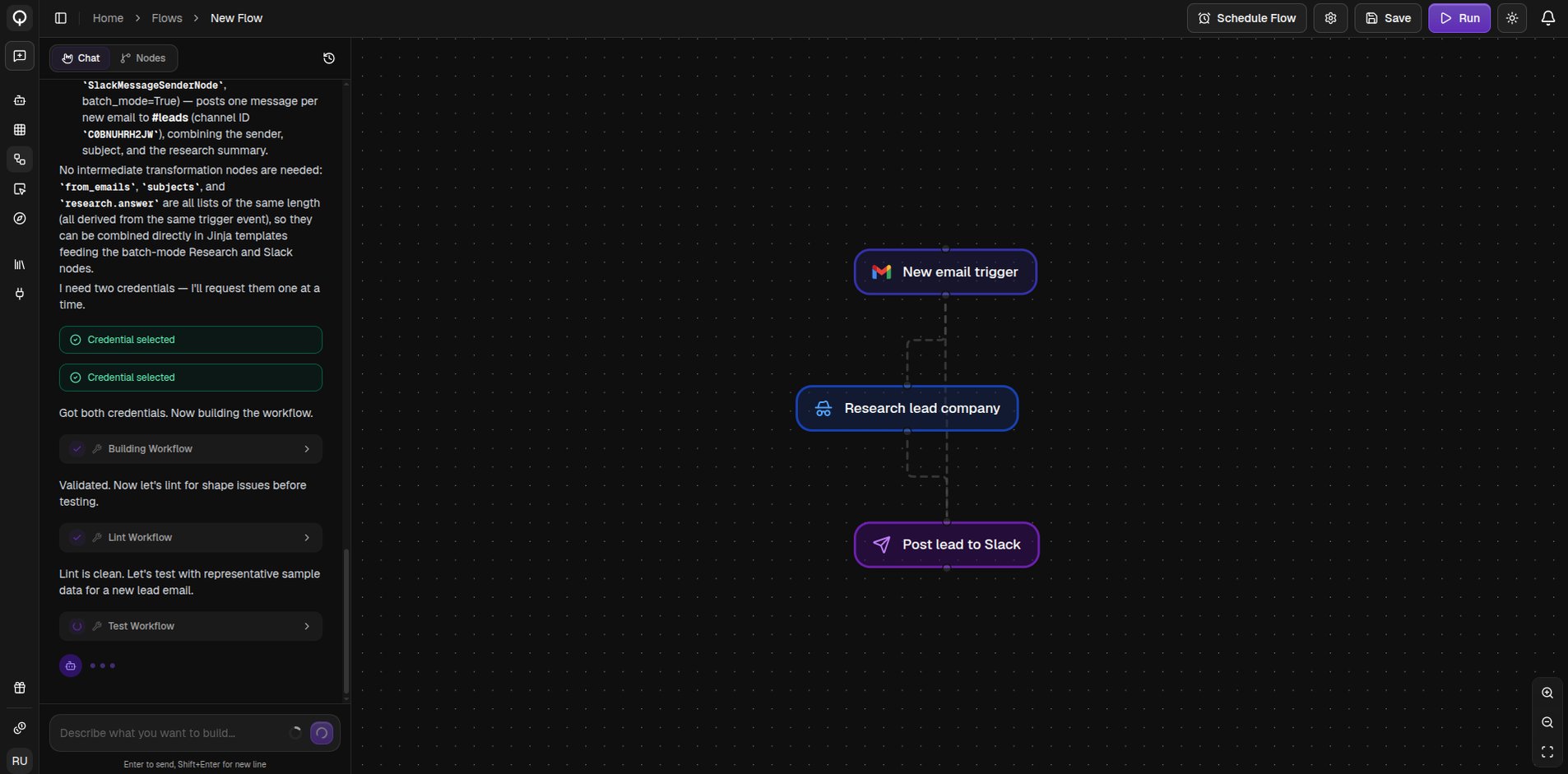
You’ll see progress cards for each step as the builder works, and a preview of the flow updates on the canvas as nodes are added.
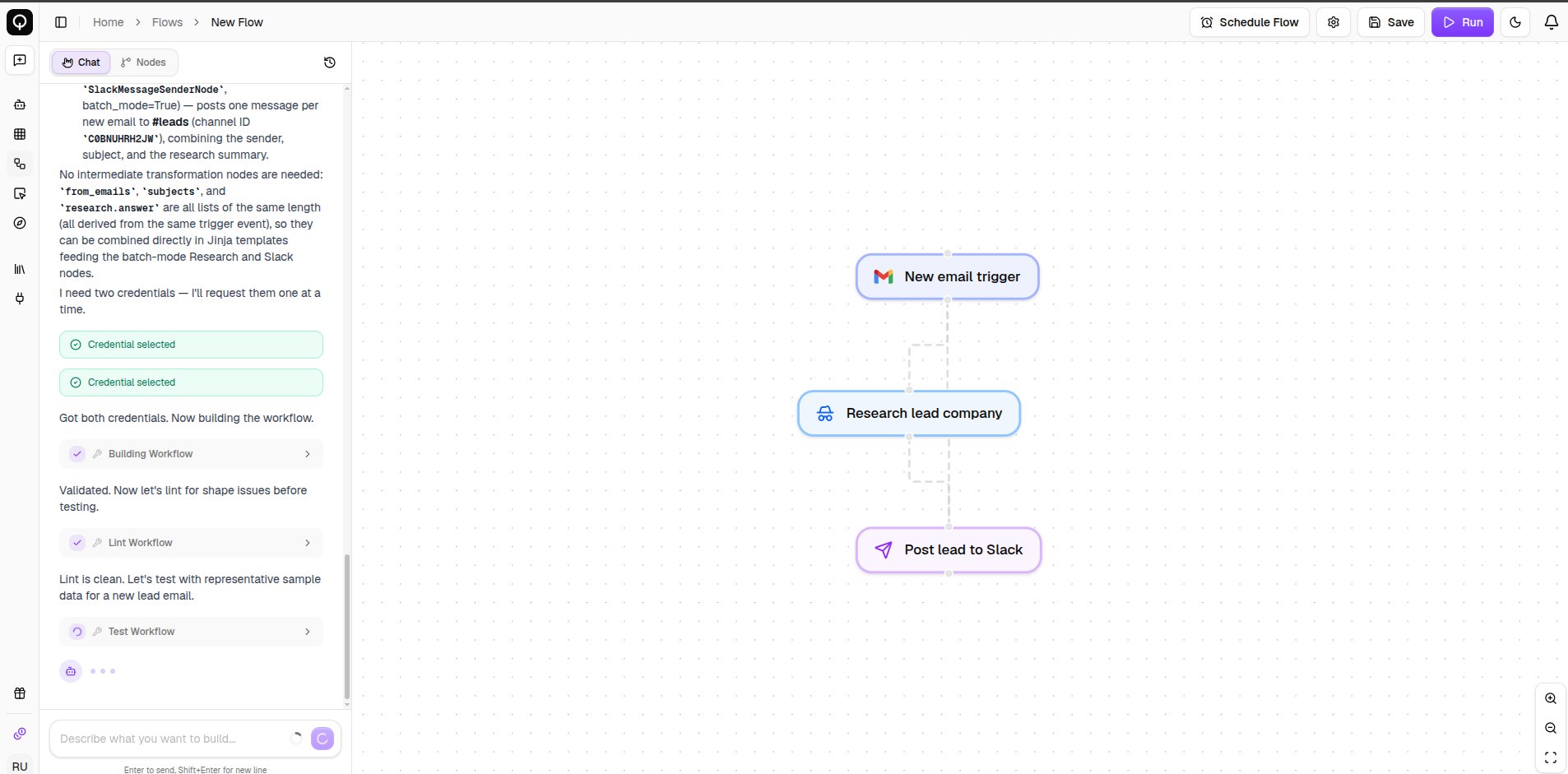
The flow builder's Chat mode showing progress cards and a live preview of the flow being built
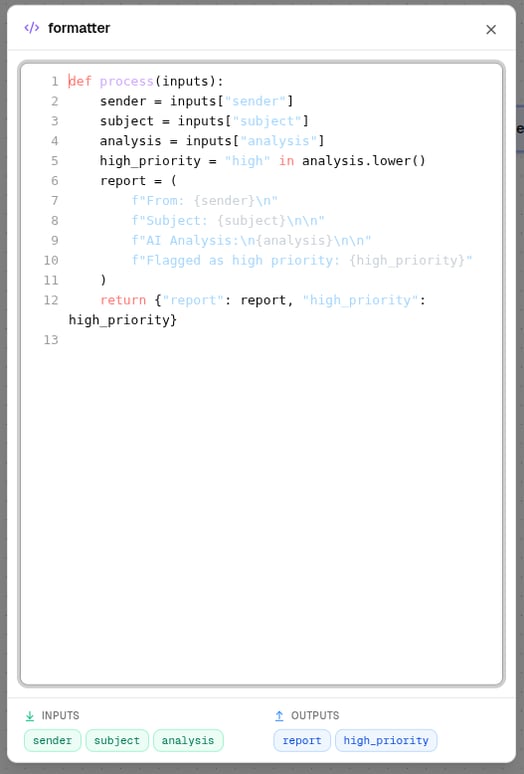
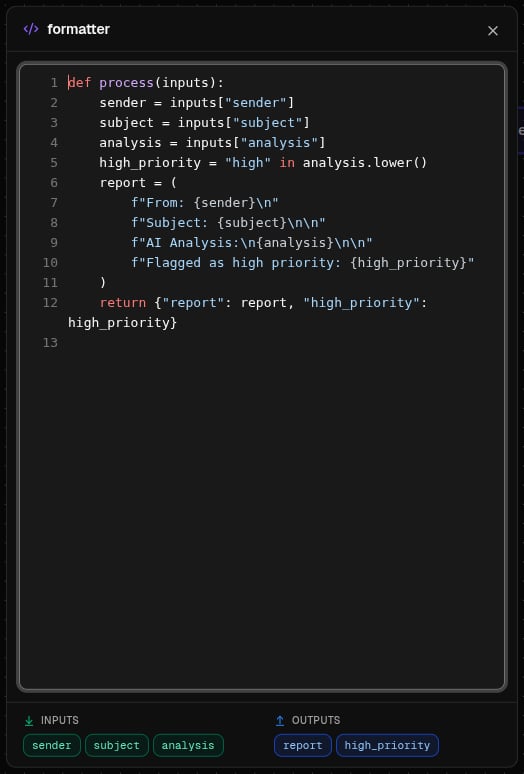
If a step needs logic no built-in node covers, the builder writes a custom code node for it automatically. Click that node in the preview to see what it wrote. You can edit the code yourself by switching to Nodes mode.
The code review panel for a custom code node the builder wrote

Answer its questions

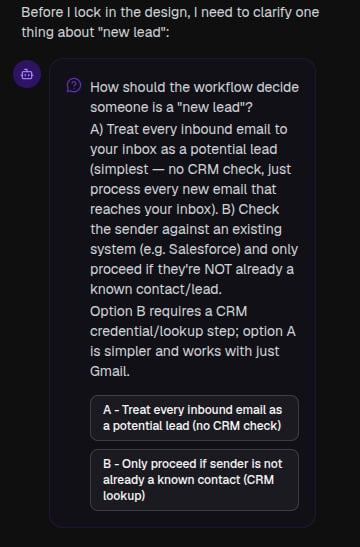
  • A clarifying question card: click an option, or type your own answer.
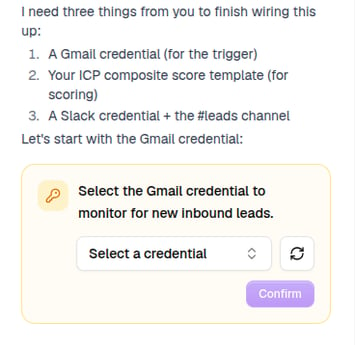
  • A selection request card: pick an existing credential, flow, or vault, or connect a new one.
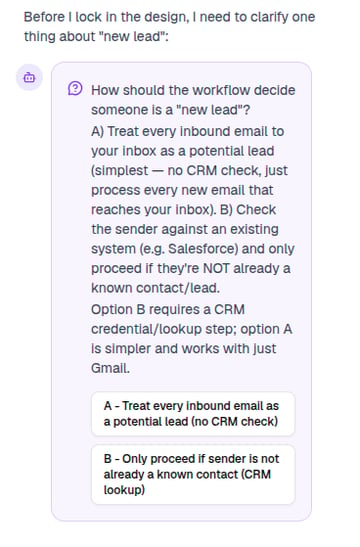
A clarifying question card in the chat, with answer options
A clarifying question

A selection request card asking the user to pick a credential

A selection request

You can switch between Chat and Nodes mode any time to customize the flow yourself, then switch back and keep chatting, the builder picks up whatever you changed. Past conversations for this flow are saved: open the history icon at the top of the panel to revisit one or start fresh.

Save, run, and schedule

Once you’re happy with the flow:
  • Click Save (or ⌘S) to save it. You’ll be asked to name it if it doesn’t have one yet.
  • Click Run to run it right away.
  • Click Schedule Flow in the toolbar to have it run automatically on a recurring schedule.
To track progress, outputs, and past runs, see Running and testing and Run history.
AI flow building consumes credits (shown as “Vibe agent” on the Usage page).