> ## Documentation Index
> Fetch the complete documentation index at: https://docs.qxlabs.com/llms.txt
> Use this file to discover all available pages before exploring further.
# Agent communications
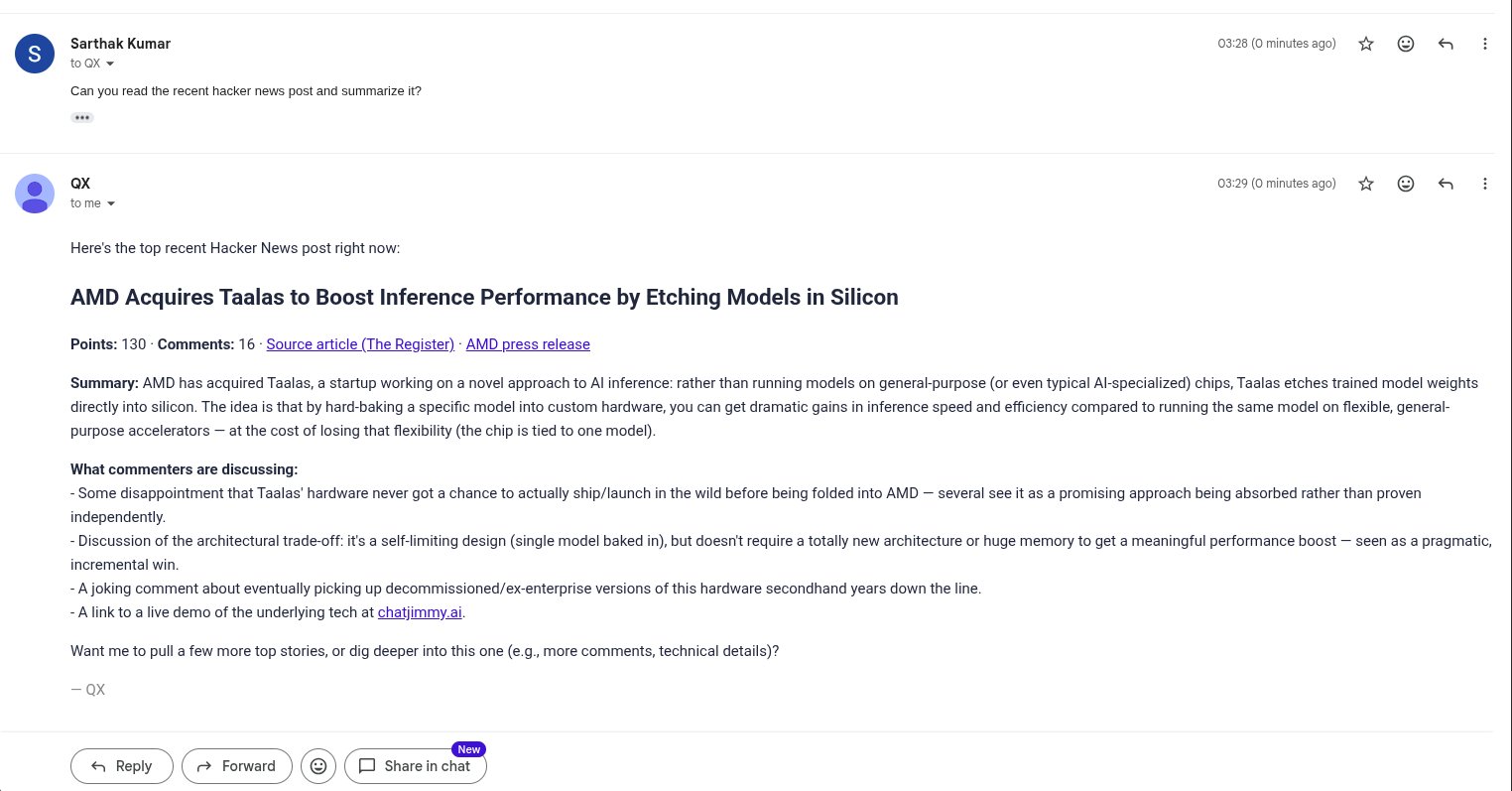
You can also chat with your agents through other communication channels, Slack, Microsoft Teams, WhatsApp, and email.
## Chat through other channels
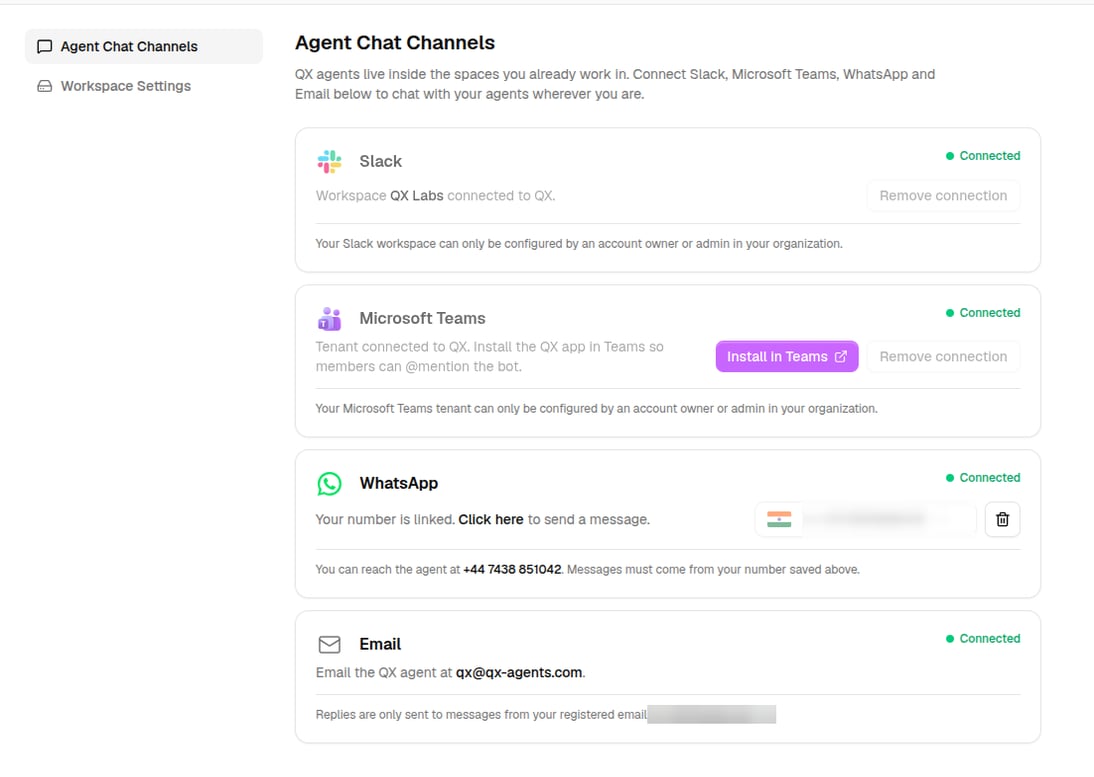
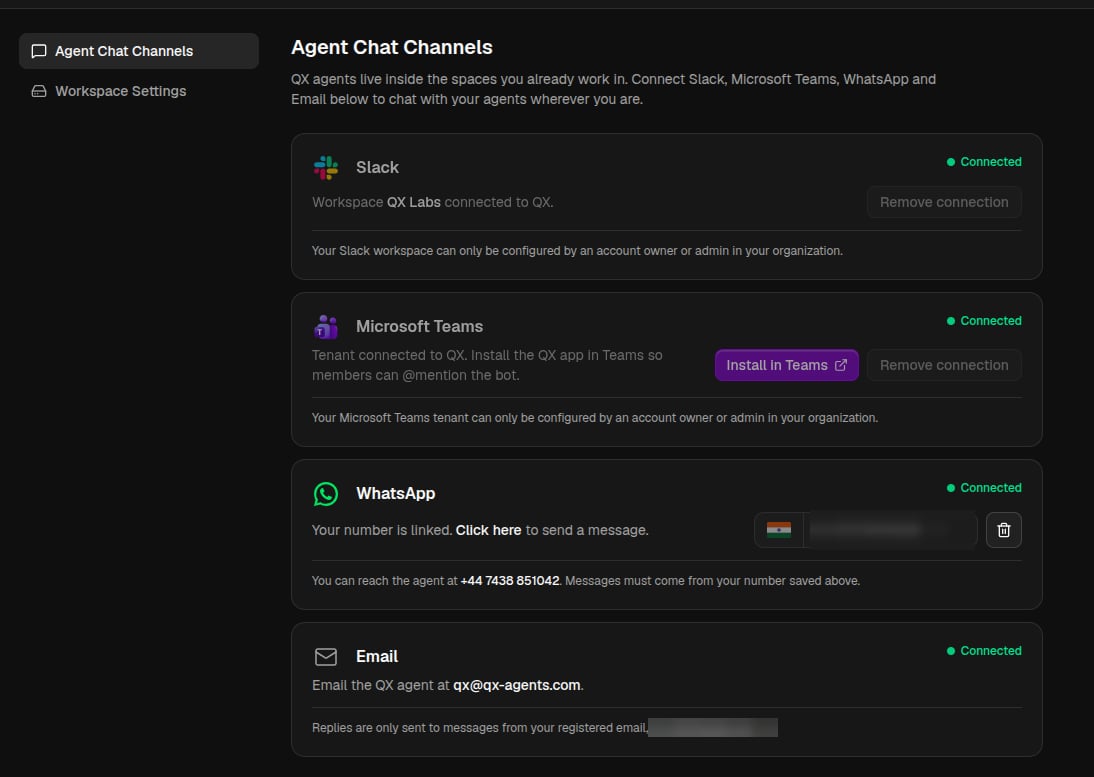
Connect a channel once for your organization under **Settings → Agent Chat Channels**, then turn it on for the agent in its **Communication** section.
 ### Slack
1. **Connect**: install the QX Slack app into your workspace via **Settings → Agent Chat Channels**. This is done once for the organization, and QX is ready to message right away.
2. **Turn it on**: to chat with a custom agent other than QX, open that agent's **Communication** section, choose **Enable Slack bot**, and follow the steps to set it up.
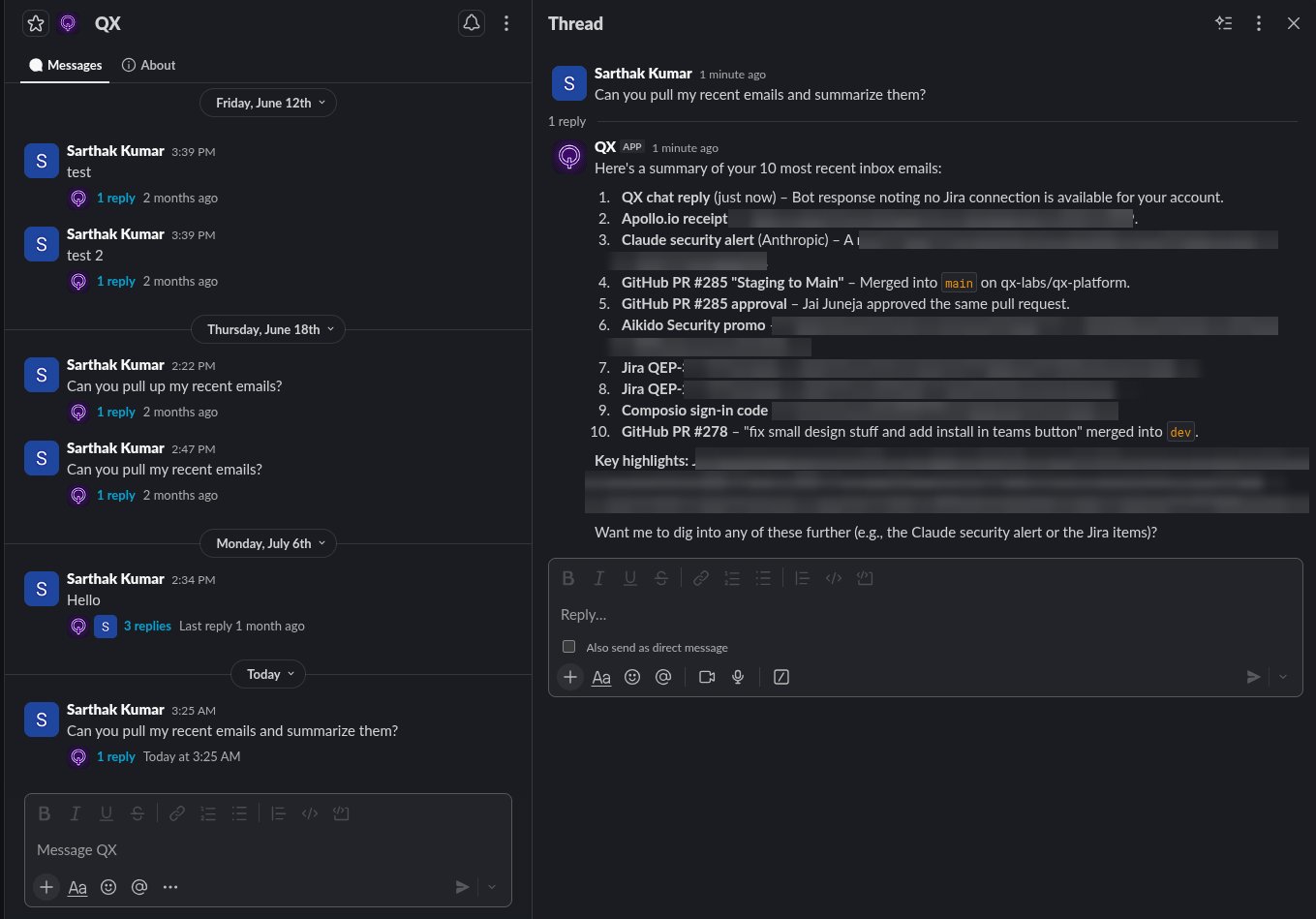
3. **Chat**: message the bot in Slack. Your teammates can talk to it there too.
### Slack
1. **Connect**: install the QX Slack app into your workspace via **Settings → Agent Chat Channels**. This is done once for the organization, and QX is ready to message right away.
2. **Turn it on**: to chat with a custom agent other than QX, open that agent's **Communication** section, choose **Enable Slack bot**, and follow the steps to set it up.
3. **Chat**: message the bot in Slack. Your teammates can talk to it there too.
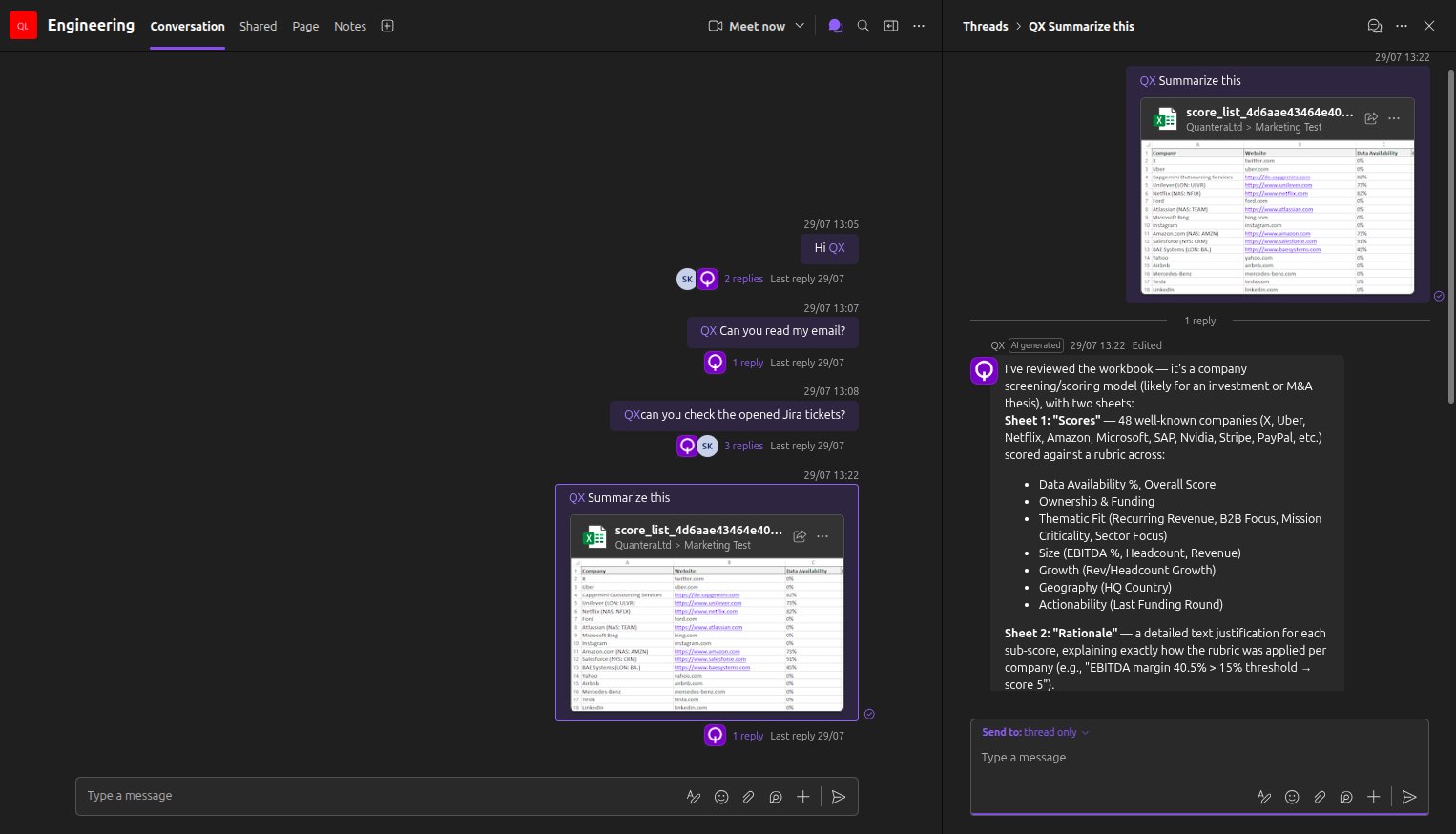
 ### Microsoft Teams
1. **Connect**: install the QX Teams app from **Settings → Agent Chat Channels**.
2. **Chat**: message your agents inside Teams.
### Microsoft Teams
1. **Connect**: install the QX Teams app from **Settings → Agent Chat Channels**.
2. **Chat**: message your agents inside Teams.
 ### WhatsApp
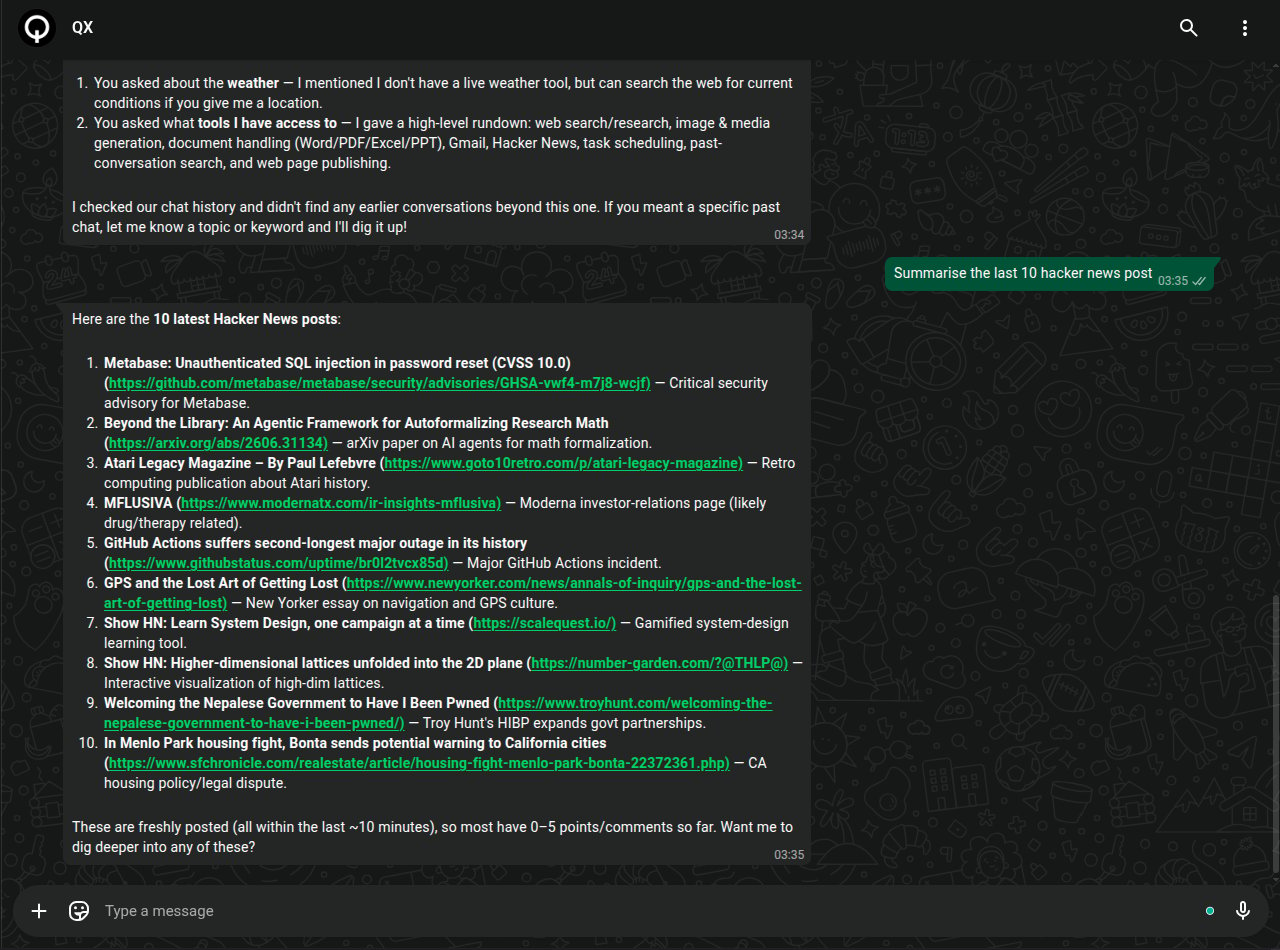
1. **Connect**: save and validate your phone number in **Settings → Agent Chat Channels** (or your **Account** settings).
2. **Turn it on**: enable WhatsApp for the agent in its **Communication** section.
3. **Chat**: message the QX WhatsApp number. The agent replies only to the number you saved.
### WhatsApp
1. **Connect**: save and validate your phone number in **Settings → Agent Chat Channels** (or your **Account** settings).
2. **Turn it on**: enable WhatsApp for the agent in its **Communication** section.
3. **Chat**: message the QX WhatsApp number. The agent replies only to the number you saved.
 ### Email
1. **Connect**: every organization gets agent email on the QX agent domain automatically.
2. **Turn it on**: enable email for the agent and choose its alias (e.g. `research@…`).
3. **Chat**: email the agent a task and it replies in the thread. It responds only to your registered email address.
### Email
1. **Connect**: every organization gets agent email on the QX agent domain automatically.
2. **Turn it on**: enable email for the agent and choose its alias (e.g. `research@…`).
3. **Chat**: email the agent a task and it replies in the thread. It responds only to your registered email address.